
Desktop Settings
Web Phone Settings
Enable Web Phone = ON. This allows the device to answer and place calls. Without this, the application is essentially in ‘Read-Only’ mode where you can only reject/hangup a call. However, call box functions (e.g. transfers, parks, etc.) will still be functional. For complete functionality, Receive Calls should also be enabled to be able to answer inbound calls.
Receive Call Notifications = ON. This sends a notification within the AvidBit application itself in the bottom right corner that a call is incoming, as well as a browser notification. (typically Google Chrome)
Receive Calls = ON. If this is on, Receive Call Notifications will automatically be enabled as well. This will allow you to answer an incoming call by clicking the green call button.
Web Push. This is only needed if browser notifications (typically Chrome) aren’t coming through to the desktop. If Receive Call Notifications is ON, this toggle shouldn’t be required.
Audio Device
The Web Audio Device defaults to whatever the default microphone on your computer is using. Typically this is a headset that is connected via bluetooth or a cable. This can be manually overridden to use a separate audio input device than what the computer is defaulting to.
Default Devices
Override on Device. This is not needed for desktop settings. This is typically only turned on within the cell phone application (see below) to prevent the settings on the desktop from applying to the settings on the cell phone.
Default Communication Device: This is the device that the call will go through when you place an outbound call. If it is selected as ‘Use Computer’, it will use the web application and the microphone to call out. If a physical desk phone is selected here, outbound calls initiated from the desktop will be sent out via the physical desk phone

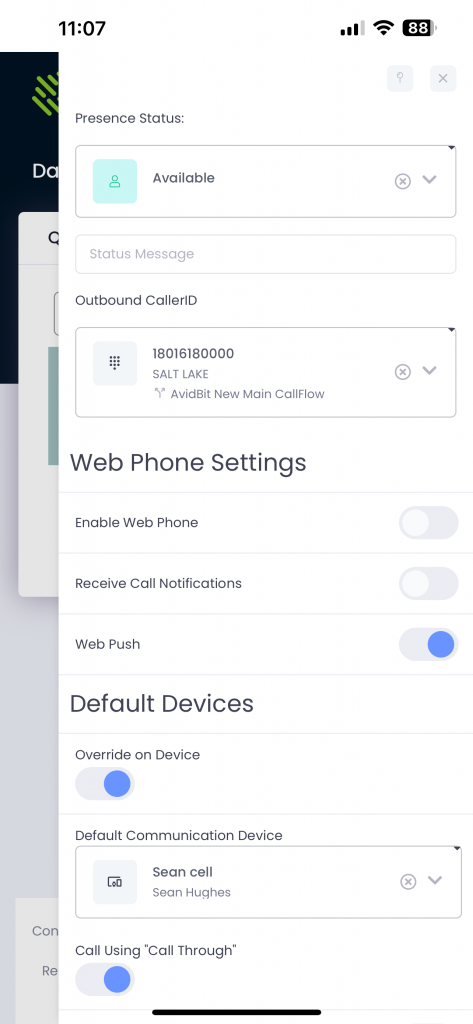
Cell Phone Settings
Web Phone Settings
Enable Web Phone = OFF. This only should be on for the desktop. This doesn’t need to be on for the cell phone, because we will reach your phone via the cellular network giving a better voice quality.
Receive Call Notifications = OFF. This will automatically be off as long as the Web Phone is disabled.
Receive Calls = OFF. This will automatically be off as long as the Web Phone is disabled.
Web Push = ON. This is how push notifications will be sent to your phone. Things like CallerID, text messages, voicemail alerts, etc. For iPhone, iOS must be on 16.1 or above for web push to work.
Default Devices
Override on Device = ON. This MUST be on, otherwise, settings from the desktop application will try to override the settings you set on your cell phone.
Default Communication Device: This needs to be set to your cell phone.
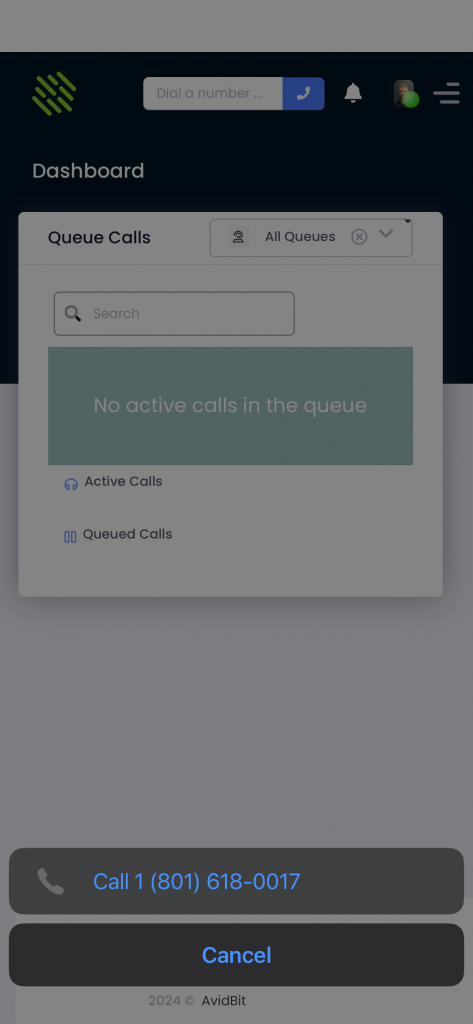
Call using ‘Call Through’ = ON. With this, when you place a call, a pop up bubble will appear on your screen. This will typically be a ‘801-618-####’. This is our number we use to route the call. As soon as this is clicked on, the call will initiate. If this is turned OFF, when you place a call, our servers will first call to your cell phone, you will need to answer, and only upon answering will the call go out.
Common Issues
Failed To Connect – This typically indicates that an audio device isn’t being recognized by AvidBit. First ensure that your headset/microphone are properly connected to the computer. Make sure that the ‘Web Audio Device’ is either set to default, or manually pick the device from the drop down menu. Finally, click the three dots in the upper right corner of the application, select ‘App Info’ and ensure ‘Microphone‘ is enabled.
