Enabling and Adding Custom Requests
This is found in the same section as enabling global AI. Settings -> Locations -> Your Location -> AI -> AvidBit Intelligence Custom Call Request.
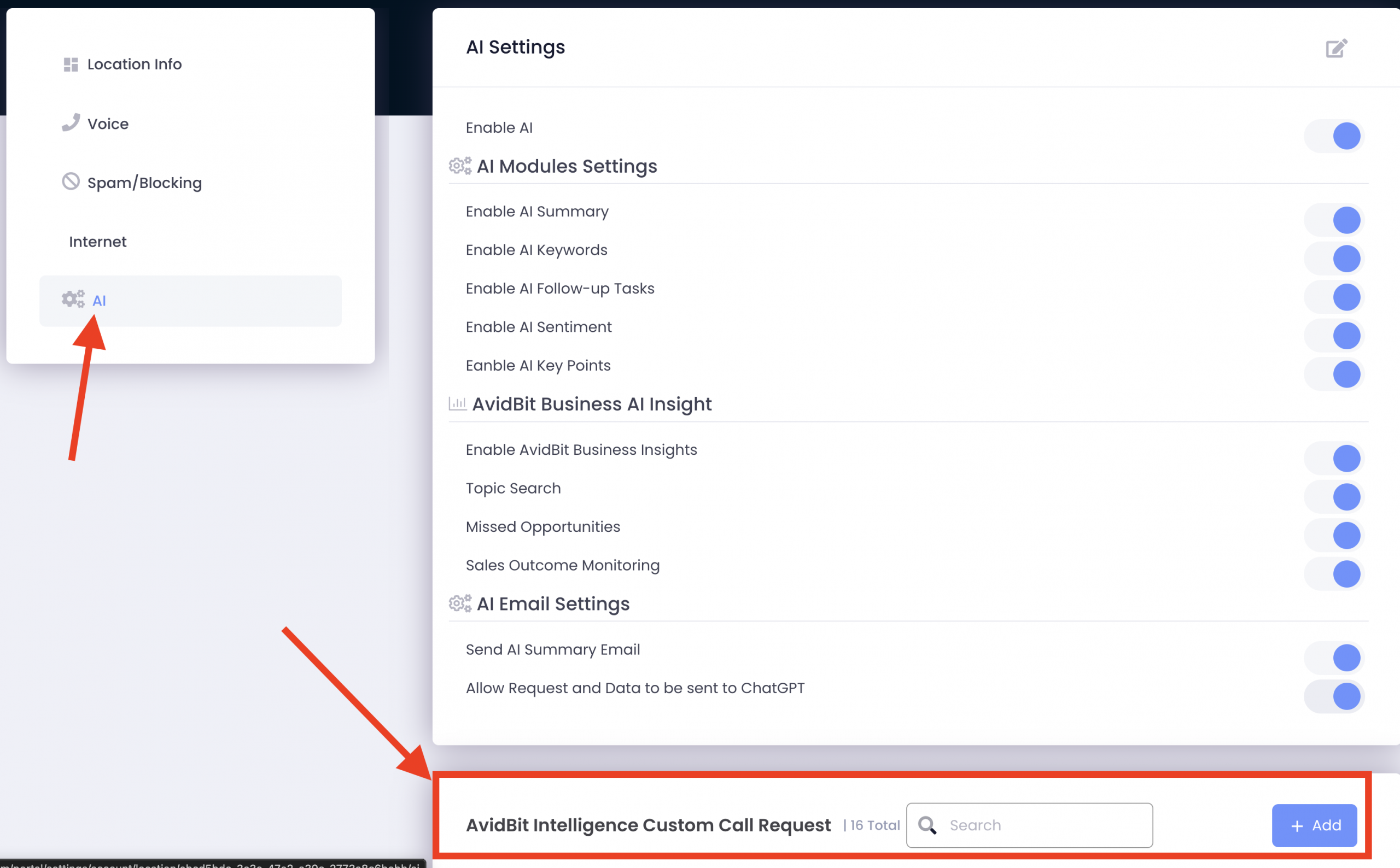
- After clicking on the blue +Add, you will see this popup window:
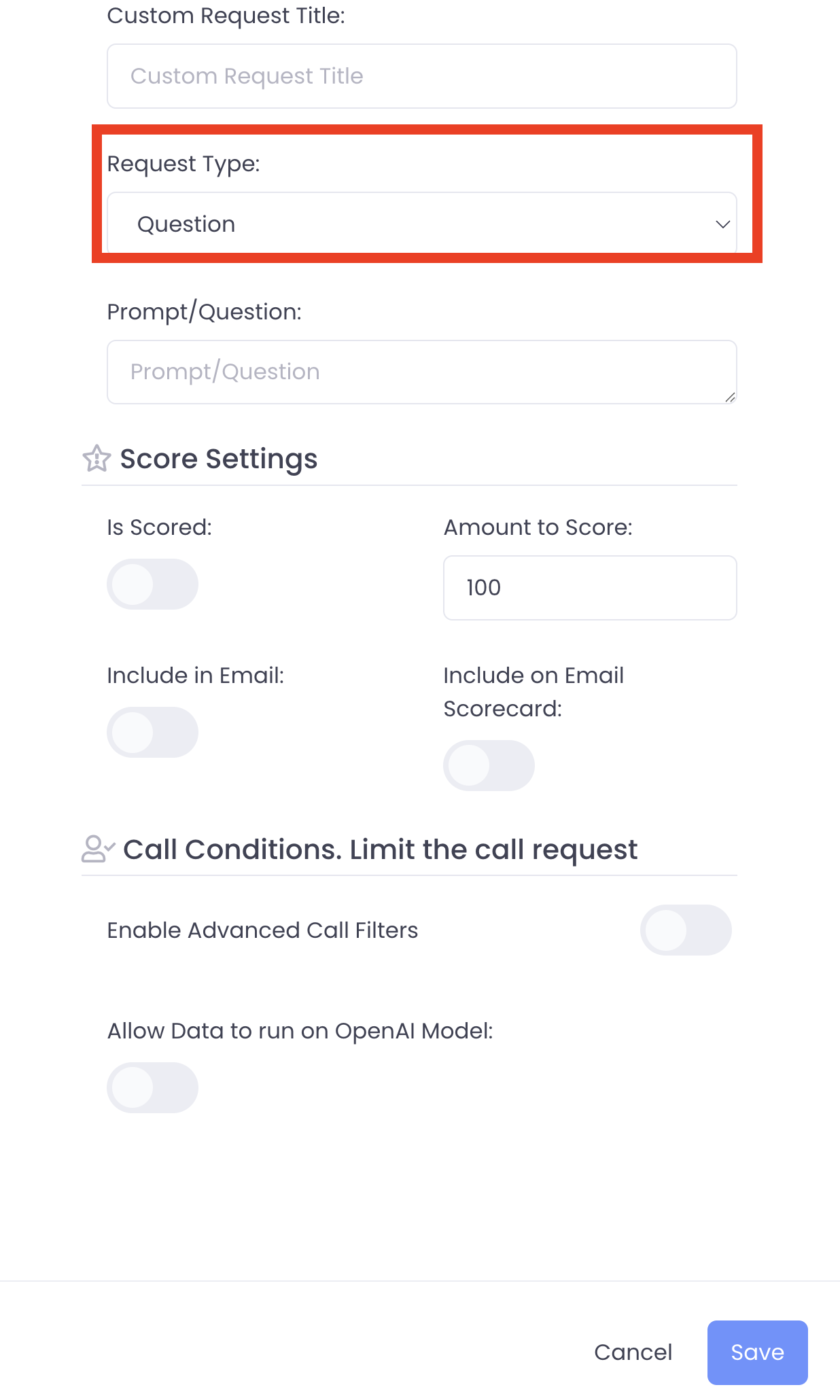
2. Provide a Custom Request Title for easy identification
3. The Request Type has 4 options
a. Question
b. Sentence Match
c. Rating
d. True or False
Question (non-scorable): What you would like to ask about your calls.
E.g. “What were the customer’s pain points on this call?”
In the interface, it then will list out each pain point and count how many times it comes up across calls. Essentially it looks for similarities between calls.
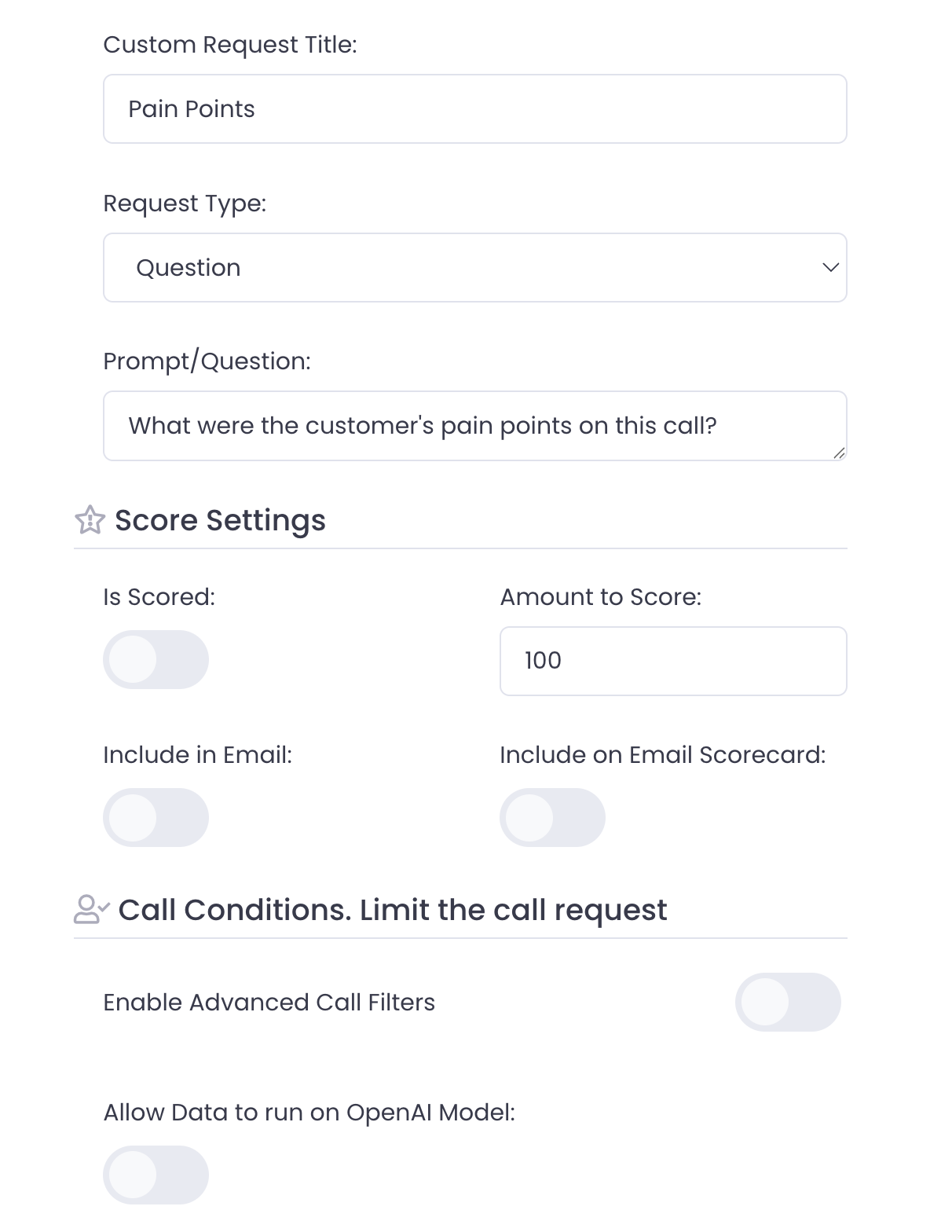
Sentence Match (scorable): This would match against a Yes/No on provided sentences. This can take multiple sentences (one sentence per line) to listen for.
This also can take a unique field for Match Probability Threshold. Value is 1-100. 100 means we are 100% sure this is a match, whereas 75 means we are pretty sure (75% sure) that this is a match to one of the sentences provided.
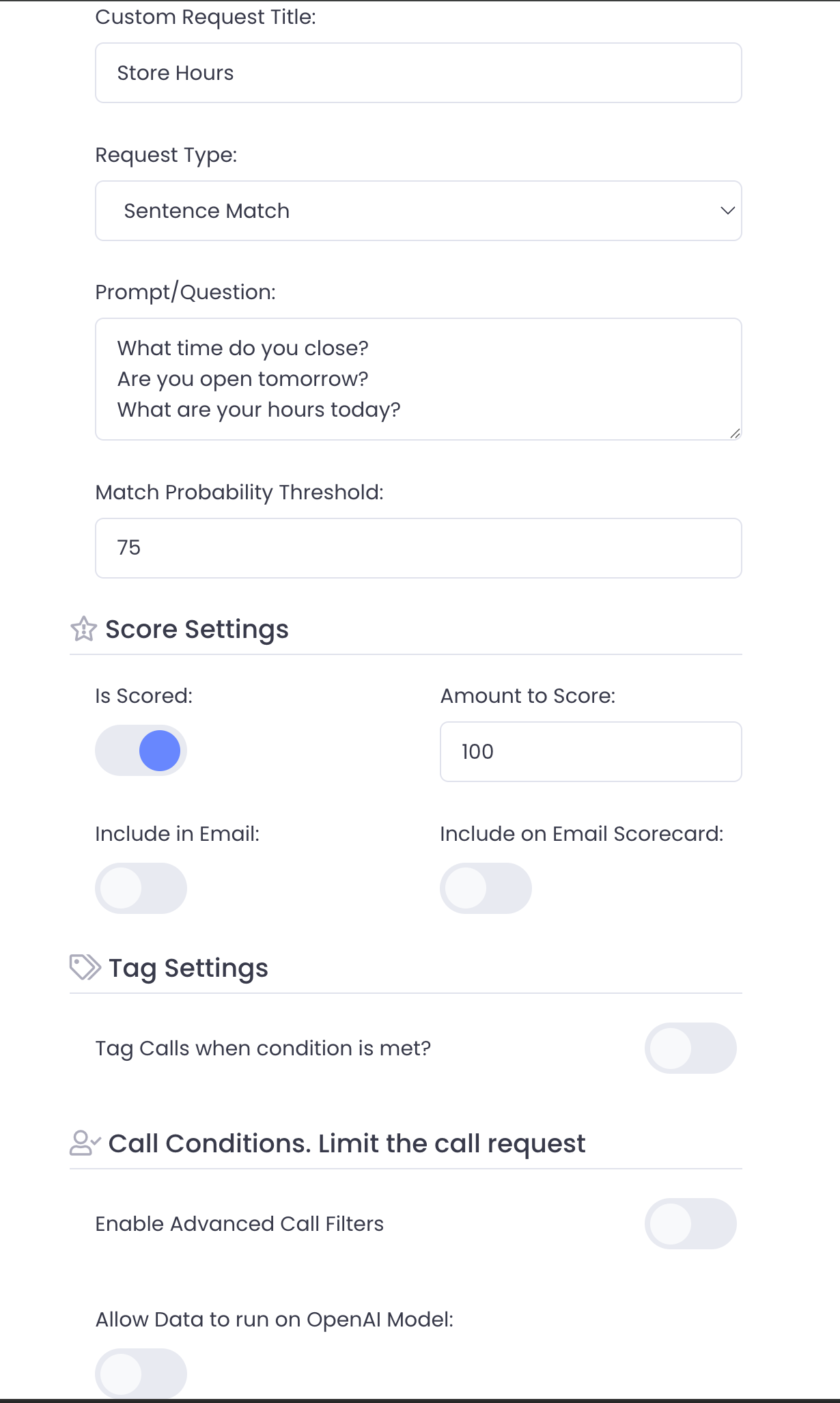
Rating (scorable): The prompt will take the form of “Ask to rate this call on a scale of 1-X” E.g. rate from 1-100, 1-10, etc. Whatever the highest number is you are rating against, you will want to put that same integer into the Amount to Score (see below).
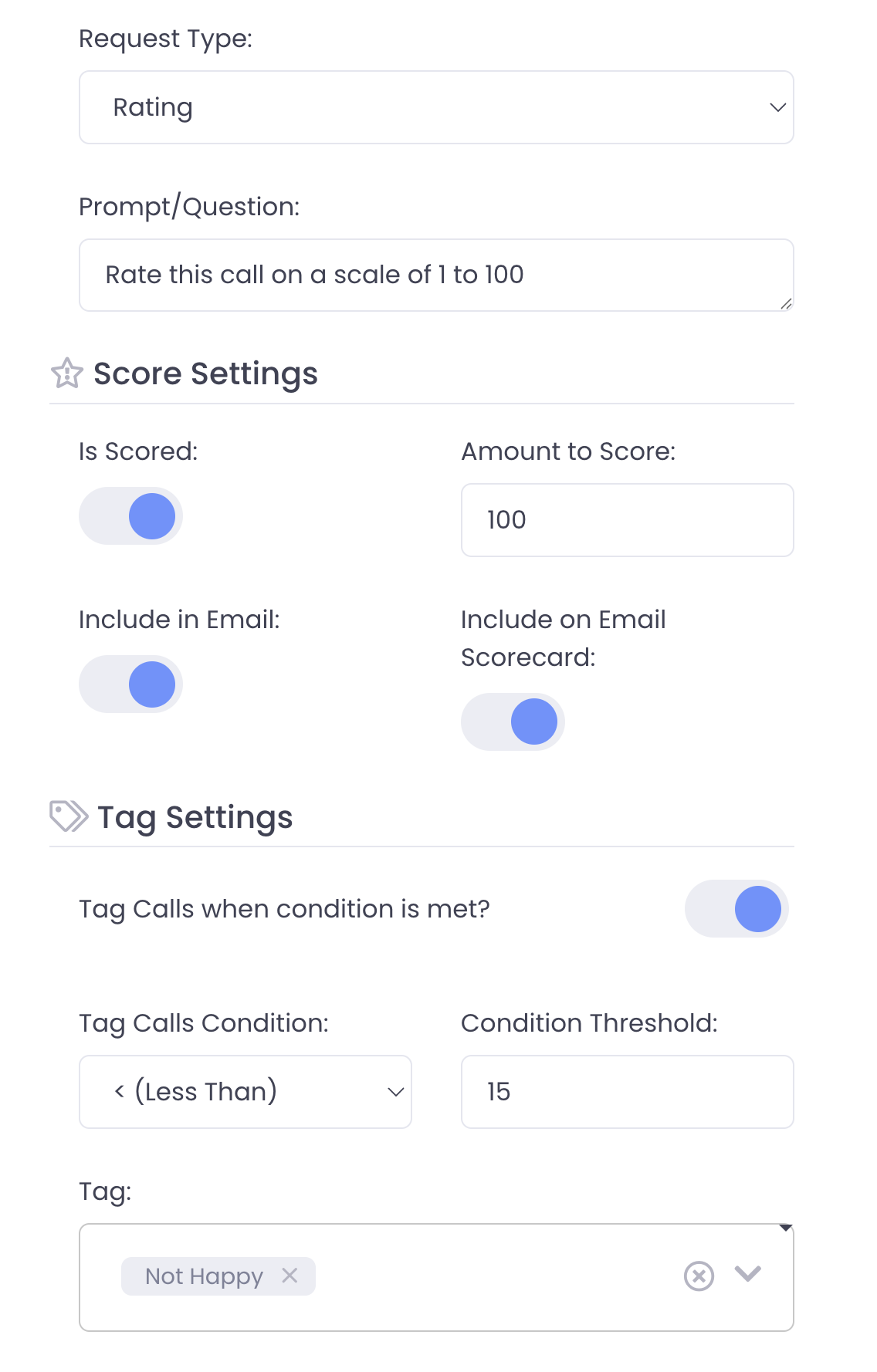
True/False (scorable): Pass in if you expect a condition to have happened. If it did and passes True, it gets scored and can be seen in the analytics interface. If it doesn’t happen and comes back False, it will NOT be scored. A tag can also be applied to any call that matches true. Only one tag is allowed.
Scoring
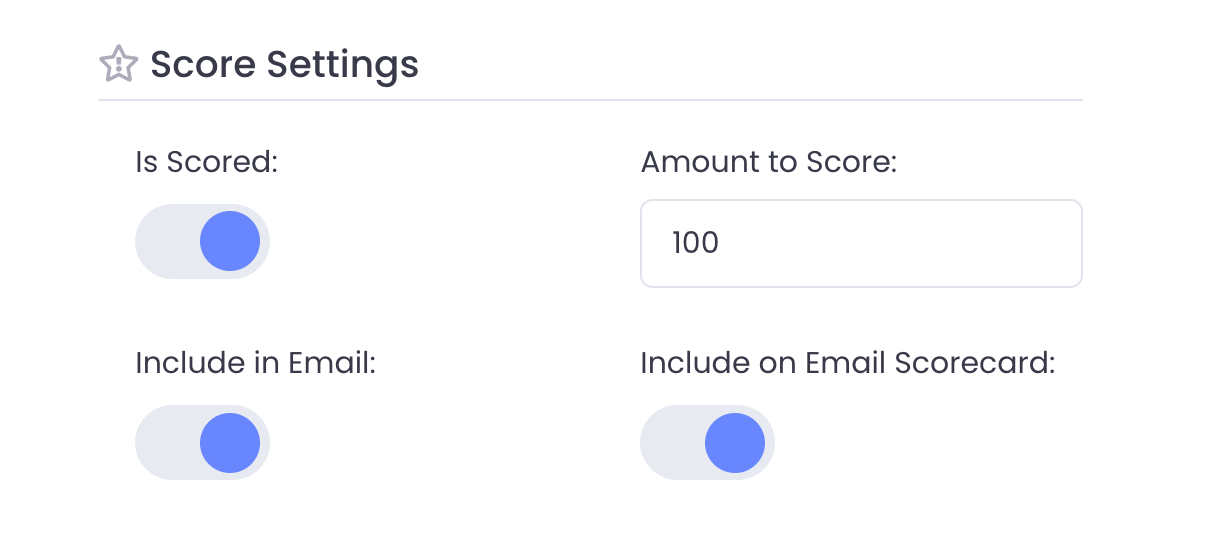
Is Scored: If enabled, this will create a analytic graph against all Custom Requests that have scoring enabled where the Custom Request Title becomes the title of the graph.
Amount to Score: This is the max value scores can go up to.
E.g. scale from 1-5, Amount to Score should be ‘5’. Scale from 1-100, Amount to Score should be ‘100’. Analytic graphs score every integer from 1 up to ‘Amount to Score’
Include in Email: As it says, AI email can include any custom request with generated analytics. (includes reasoning. why the AI put this in)
Include on Email Scoreboard: This will send a scorecard (bingo looking sheet) with quick one stop shop analysis of custom requests.
Tagging Calls
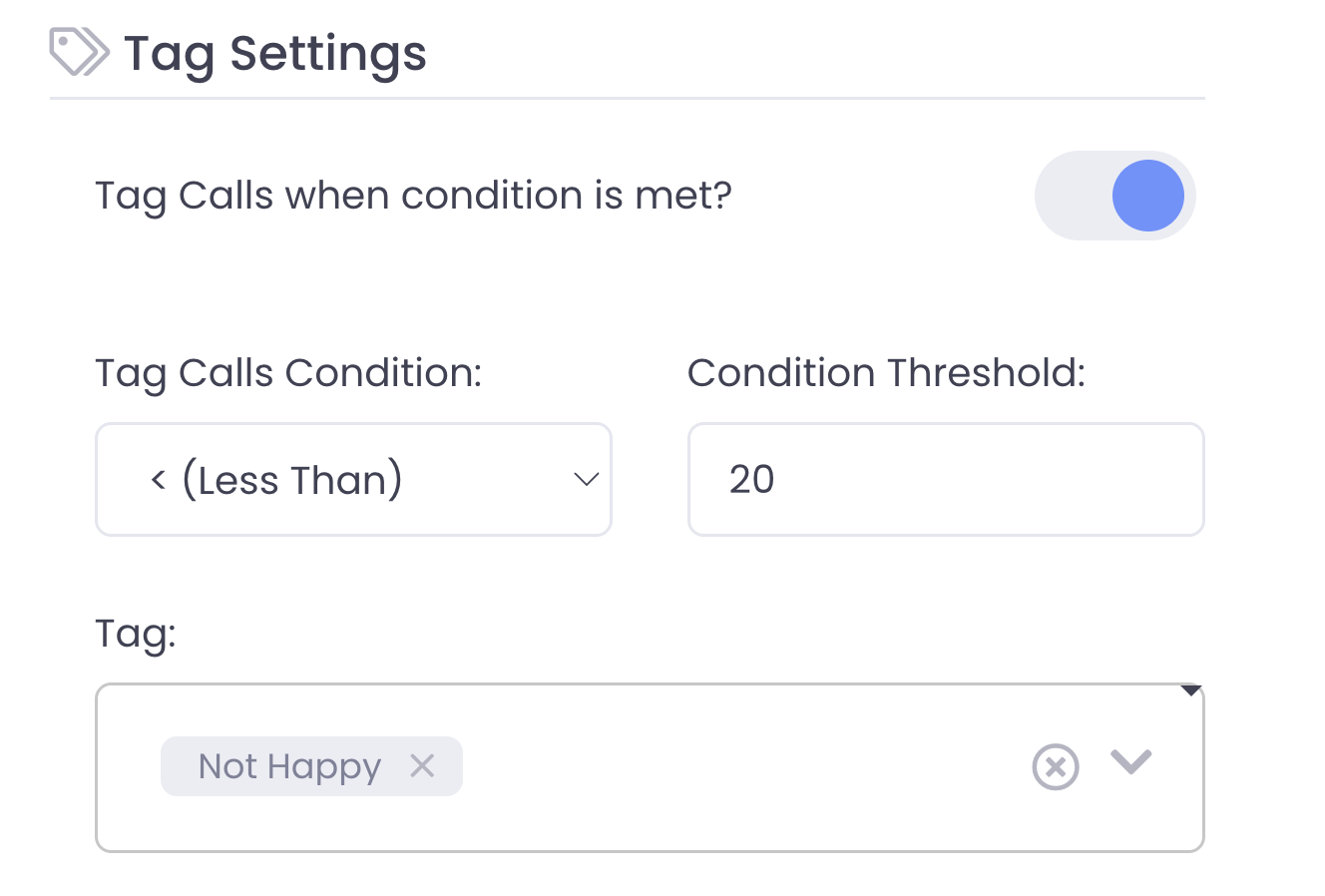
Custom requests with type Sentence Match, Rating, and True/False can automatically be tagged once a condition is met. In the below example I have a Rating from 1-100 and if a call is scored below 20 it automatically gets tagged as Not Happy. These tags can then be viewed at in Call History for further analysis and reporting.
Call Conditions
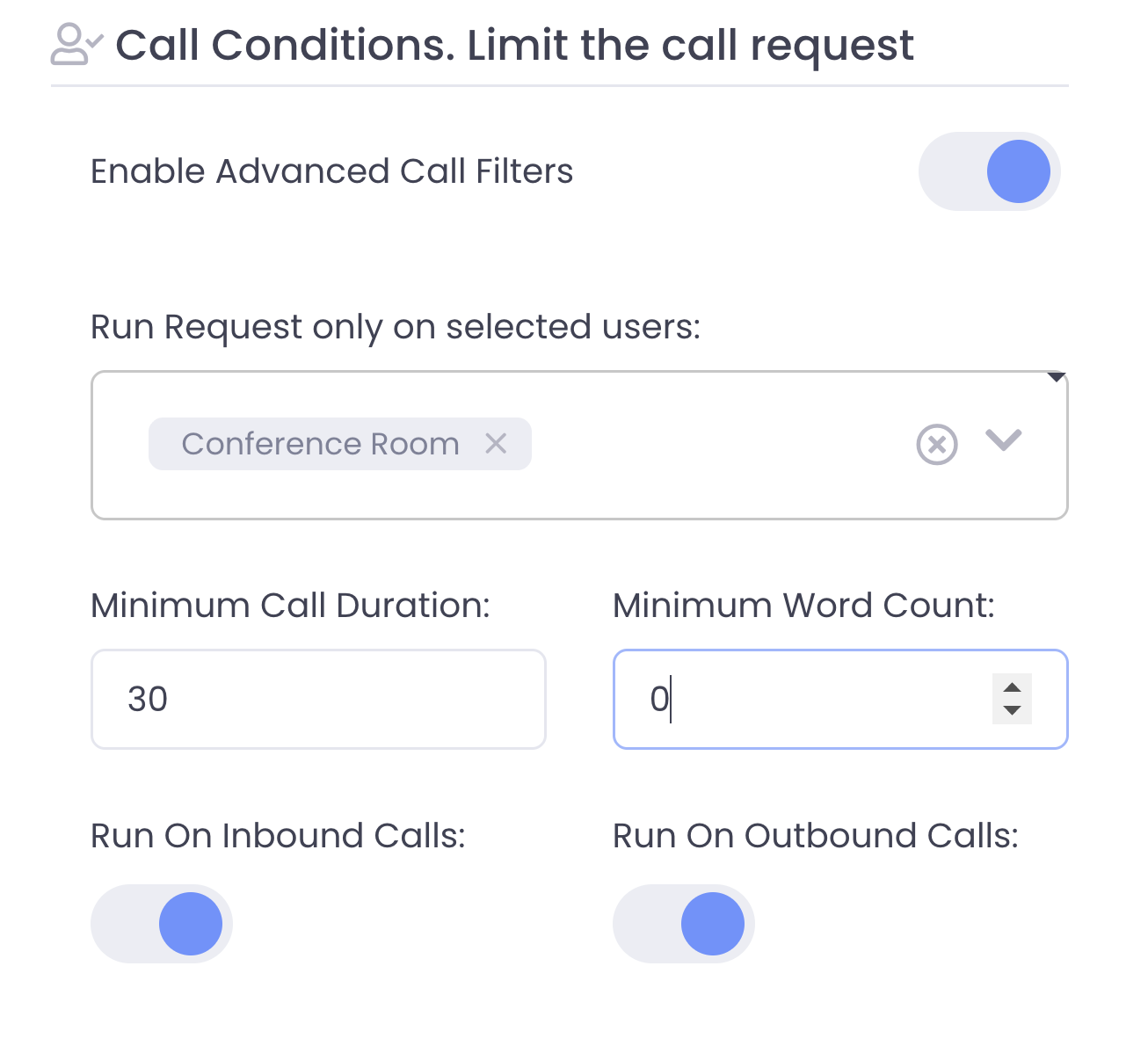
Custom requests can be further refined to only run on specific users, or once it meets a criteria. The below example is applying a Rating request, but only for the Conference Room user and as long as the call was at least 30 seconds. You further can choose to run it on inbound vs outbound calls.