
How to enable AI features for your company as well as detailing each AI feature we have available.
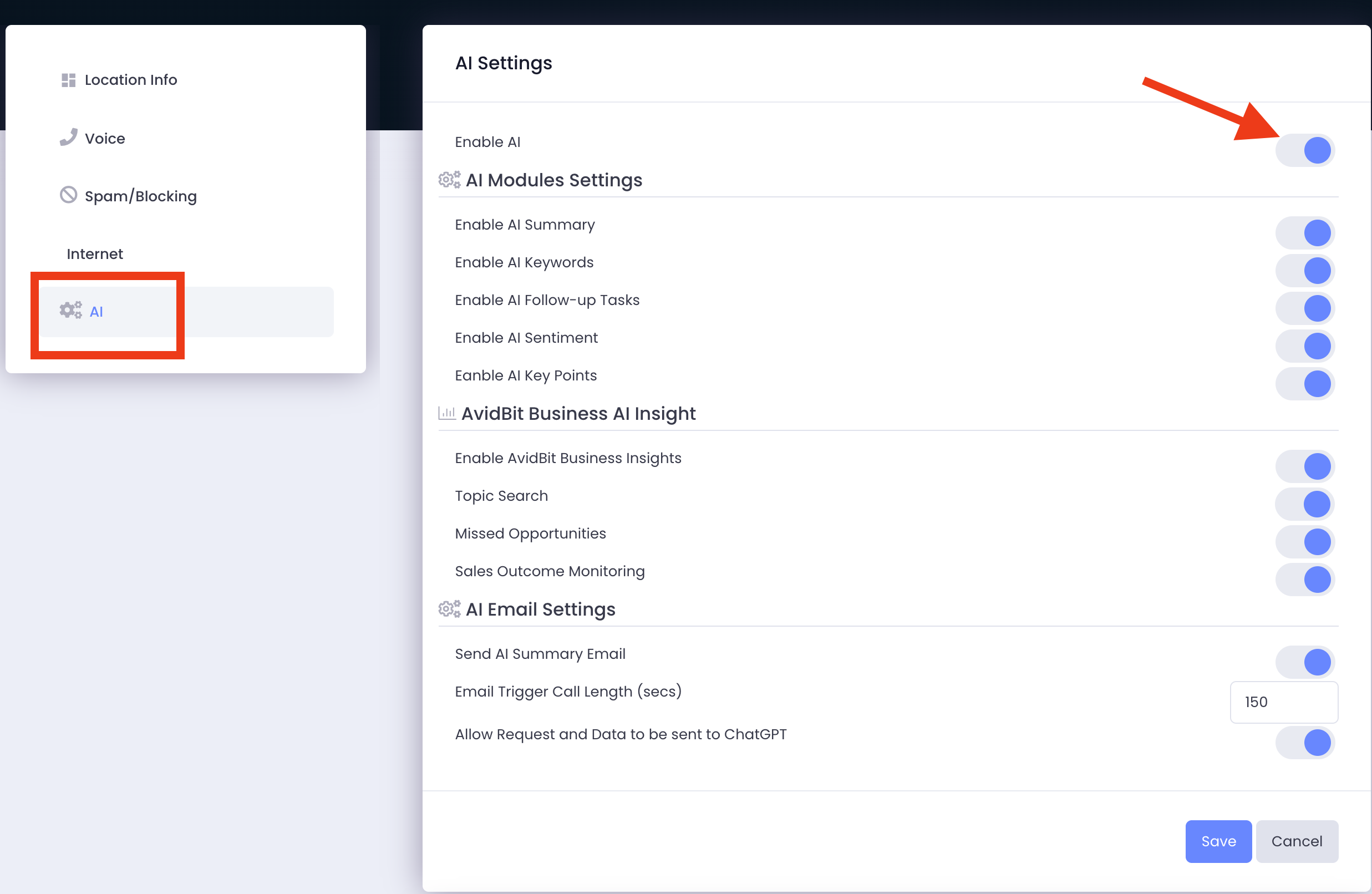
AI Modules Settings
Enable AI Summary: Summarizes call(s) into a short paragraph detailing generally what the call was about, as well as what the AI considers relevant details. It also includes Key Points (if enabled) about the call as well as Decisions that were made (i.e. agreed to do something, or to make a change).
Enable AI Follow-up Tasks: Determines if there were any open questions or items to do that were discussed on the call. E.g. customer says: ‘I’ll have my accounting team get you a quote for this project.” This will then create a Follow-up Task to have accounting send a quote.
Enable AI Sentiment: This analyzes tone and word choice for overall sentiment of the call whether it was perceived as a positive, neutral, or negative call. Each category follows a scoring threshold (see table below)
| Positive > 65% | Neutral 50-65% | Negative < 50% |
| cues: appreciation, satisfaction | cues: information, questioning | cues frustration, annoyance |
| We got everything taken care of for you. | I’d like to check the status of my account. | This solution isn’t working for me. |
| That works perfectly! Thank you! | Can we schedule an appointment for next week? | I’ve been waiting for this to be done for days now. |
| This is just what I needed. | I need help understanding how to do this. | We keep running into the same problems. |
| Your customer service has been fantastic. | What is your delivery address? | This is causing major issues with our business operations. |
Enable AI Key Points: These determine the main topics of the call as well as any decisions that were made. (Key Points & Decisions)
Business AI Insights
Enable AvidBit Business Insights: REQUIRED to be on for tracked markers to display in the Web App. This enables a graphical interface for the features below (Topic Search, Missed Opportunity, Sales Outcome Monitoring). This also will track how much the AI values the call’s worth as if costs or prices were discussed or mentioned (referenced in Call History conversion stats)
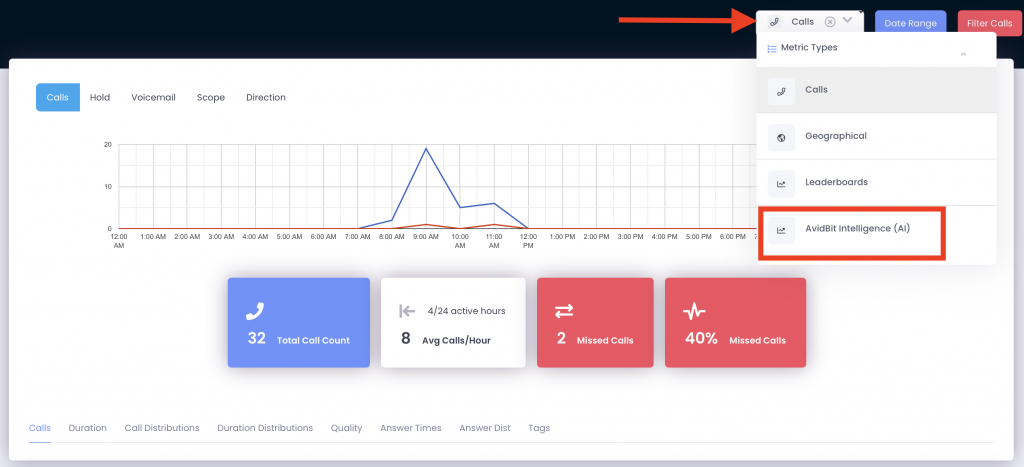
Topic Search: This analyzes the most common reasons or topics for calls, both inbound and outbound. This then creates a graph called Reasons for Calls.
Missed Opportunity: Flags and counts the instances where the business couldn’t provide a product or service to the customer. E.g. “We can’t help you with this.” “We don’t have that product in stock.” This creates a graph called Missed Opportunities.
Sales Outcome Monitoring: This watches and flags transactions, appointments scheduled, or other sales related items that indicate that a service was provided. AI asks, “Was the sale converted? How much was converted? Was an appointment set?”
If successful conversion happened like a transaction was made, or an appointment set, or the customer saying something like they’ll bring their car in, that counts towards your sales conversion rate. This creates a graph called Conversion Stats. This measures the ratio of sales calls to other calls.
AI Email Settings
Send AI Summary Email: If enabled, when users finish up with a call, they will have the summary of the call emailed to them
Email Trigger Call Length: Minimum time duration a call has to be in order to be analyzed and sent via email. This makes it so you aren’t getting email spammed by a load of scam calls, wrong number dialed, or any other reason a call can be
Allow Request and Data to be sent to ChatGPT: This will allow you the option to send calls to OpenAI’s ChatGPT to provide insights for your phone call, including the optional features such as keyword tracking, summaries, follow up tasks, etc.