
Creating a Ring Group
- From the top toolbar, select Settings
- In the Voice category, select Ring Groups
- Press the blue + Add
- Give the Ring Group a name as well as assigning it to a user. It’s always a safe bet
to assign it to yourself. - Change any options you would like:
| Distribution method | Description |
| All at once | The default setting. Every member of the group will be rung at once. |
| Ordered By Priority | This will ring people based on the order they are assigned in ‘Ring Members’. Calls will always try the user who is at the top of the list. If they are unable to answer, or they are busy, it will move to the next person and repeat that process. |
| Random | Calls will be randomly assigned to members within that ring group. |
| Least Called Today | This will first try the user with the least amount of calls. If they aren’t able to answer, it moves on to the second least called and so on. |
| Round Robin | This spreads out calls evenly and sequentially where calls will move to a new user each time until everyone has had a call sent to them. Once all members have been hit, the process begins again. |
| Group Ring Type | Description |
| Ring Group | The default setting. This is what most people would choose. This means that your phones will ring and wait for you to answer. |
| Page Group | This allows you to make a public announcement to all the members of the group. This will play through the phone’s speakers. *Note: If you need to disable receiving pages, e.g. within a meeting, disable Page under the ‘Find Me Follow Me’ pane under Users. Alternatively, put your phone into Do-Not-Disturb mode. You will not receive calls or pages while Do-Not-Disturb is enabled. Remember to disable it again. |
| Conference Page Group | This is similar to Page Group. However, rather than one person speaking to go through all the phones, anyone is allowed to join the page and can speak. This is used especially for conferences |
| Ring Group Pickup | Upon the ring group being called, any and all members during their active time (usually set at 30 seconds) will ring. Any members who pick up during this time will be bridged together into a group call. Any members who do not pick up will have their phones continue to ring until their active time ends. |
Bypass Group Call Tag: If enabled, this will ring all members regardless if they have opted out of receiving group calls.
Ignore User’s Voicemail: This is turned on by default. If turned off, the caller will continuously hit the inboxes of ring group members if there is no answer.
No missed call notification on retry: This only applies if you have set “Number of retires if nobody answers” to anything other than 0. If you have retries enabled, enable this toggle so you don’t get multiple missed call notifications from the same caller.
Allow member reject entire group call: With this enabled, any member of the ring group can reject a call which will send the caller to the voicemail of the ring group.
Retry Ignore Member Delay: This only applies if you have retries enabled on your ring group. This toggle will ignore any delays that members might have with their phone ringing.
Ringing Music: This is the music that will be played once someone calls the ring group, but hasn’t been picked up. This replaces the standard ring you would hear.
Appended CallerID Info
- Caller ID Name
- Caller ID Number
- Override Caller ID
The text that you wish to be displayed before (prepend) or after (append) the name of the caller. E.g. A caller with the name of Bob Dylan calls in. Prepending Caller ID Name with ‘Sales – ‘ will now appear as “Sales – Bob Dylan”. This is most useful when there are multiple ring groups or they make a selection from an automated system. This way, you know inside of the Caller ID what the caller is looking for.
If you would like to add any sort of number with the Caller ID info that shows up, you would append or prepend this. However, very few people will find a good use case for this. Most of the time the Caller ID Name is what you will use.
If you would like to add a custom Caller ID effectively wiping out their name and number from the Caller ID, you could do this here. This is similar to the Caller ID Name where you might use it to indicate the type of call that is hitting the ring group, but this overrides any Caller ID info that might have been present.
Configuring Members
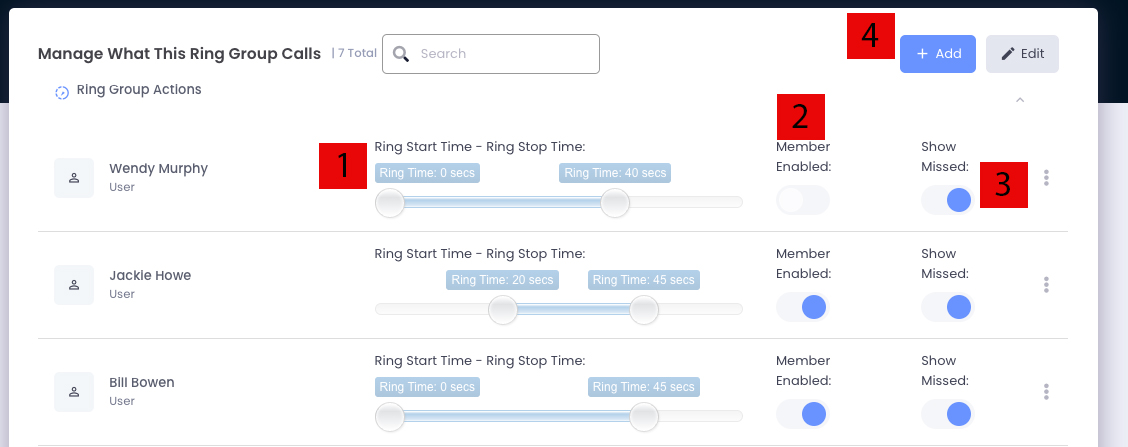
- This slider changes when you would like this user’s devices to begin ringing when the ring group is called. Click the edit button to change the two slider points to indicate the start and end time that the user’s devices will ring.
- Toggle ‘Member Enabled’ ON or OFF to have calls go to that user’s devices or not.
- If ‘Show Missed’ is toggled ON, if the call is not answered by the group, everyone with this toggle on will receive a notification about a missed call.
- To add a new member to the group click the +Add. Clicking this will open up a new prompt as follows:
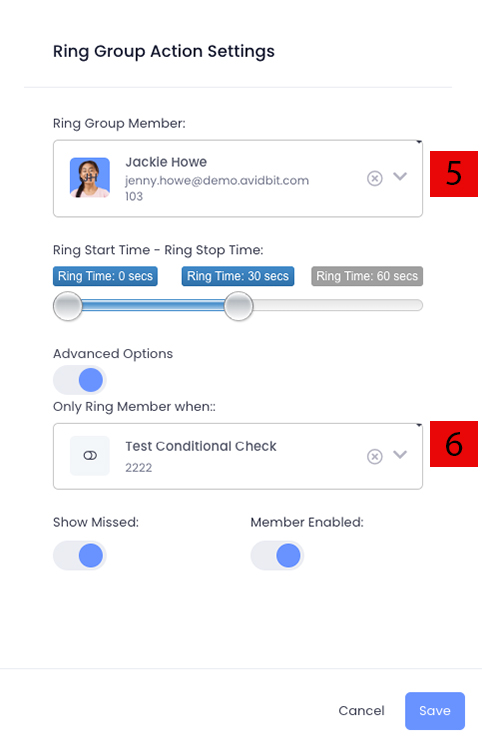
5. Select which user you would like to add to the ring group.
6. This option by default has no values. This means that when a user is added, they will always be called. If you would only like a user to receive calls to their devices based on a condition, you can create a toggle under Settings -> Toggles. Once that is created, you can reference that toggle here.