
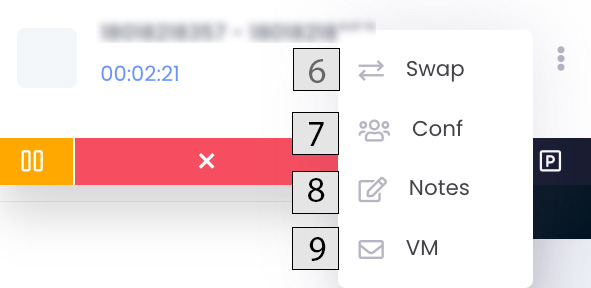
There are 5 buttons that will be present on a phone call as well as 4 additional features that become available upon clicking the three vertical dots.
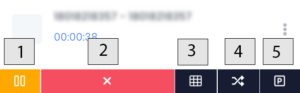
- Hold. This puts the person on the phone on hold. Hold music will begin playing for the individual, but you will not be able to hear them, and they cannot hear you. Notice that the pause button turns into a play button. Click play to take them off of hold.
- End Call
- Dial-pad. This is here for if you need to press digits during a phone call to navigate through a menu or directory.
- Transfer. Upon clicking this button, you will bring open a list of users in your company that you can send it to. Click on the users name, then Initiate Transfer to complete the transfer. You also can transfer to a phone number by pressing Transfer, DialPad, enter the phone number, and then Initiate Transfer.
- Park. This will bring up all available parking lots that you can place a person in. Putting a person in park allows other users to be able to pull that person out of a parking lot and to their device, effectively taking that person off of hold. Parked users will appear in the Communicator

- Swap. This button allows you to swap a call between your connected devices. For example, if you answer a call on your desk phone, but you would like to move this over to your cell phone, you would click swap, and then select your cell phone.
- Conf. This is a conference feature that allows you to bring other people into a group phone call. To initiate a conference call, put the current call you have on hold (accepting a new call will also place the person on hold), and connect to the second phone call. Then select the three dots on the call that is on hold, select Conf, and then select the active call you are on. Only active calls will show up. Select and press Join.
- Notes. This allows you to add notes to a phone call that can be referenced later under Call History. Upon selecting the drop down arrow for a phone call, you will see a ‘Call Info’ pane. Any notes that you took will be saved here.
- VM. This button allows you to transfer someone right to a user’s inbox. Select the user, and then press Initiate Transfer.
Common Issues
I can’t answer a phone call from my desktop
First, click on your initials in the top right corner and ensure that Enable Web Phone and Receive Calls is turned on. Receive Calls shows you that someone is calling and gives you the ability to hang up, but enabling the web phone allows you to answer a call on your desktop.
“Line unregistered”
This can mean a few things. It could possibly be that there is no voice plan tied to the user. Check this first by going to Settings -> Users -> Voice and selecting a voice plan if one is not already active. If this is happening on the desktop, this also might mean that you haven’t enabled the web phone if you have set your communication device as your computer. Select your initials from the top right corner and toggle on ‘Enable Web Phone’. Enter in the device information, and try making a call again.
“Failed to connect”
This error usually means that you have a microphone issue. If a microphone isn’t detected, it won’t make the call. Ensure that your microphone is on and connected to your computer, and that your internet connection is working correctly. If that doesn’t work, click the three vertical dots in the top right corner of the AvidBit Desktop App and select App info. Toggle ON notifications, microphone, and sound.