Do-Not-Disturb Method
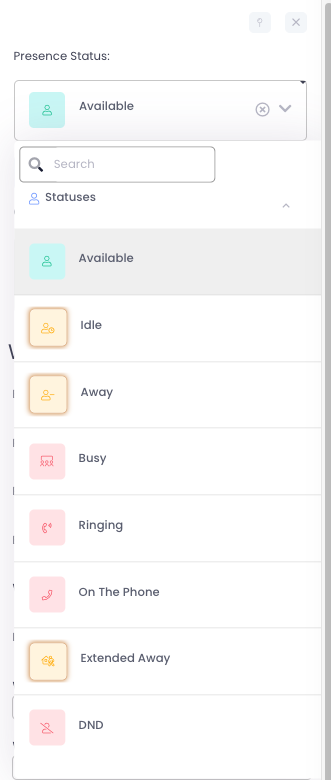
This method stops calls going to ALL your devices. NOTE: You will still be able to make outbound calls, but you will be unable to receive any for the device you do this on.
- On a desktop or mobile phone, in the AvidBit app, select your initials from the top right corner
- From the ‘Presence Status’ drop down menu, select DND
- To re-enable, change ‘Presence Status’ to Available
Do-Not-Disturb Desk Phone
If you want to disable incoming calls on just your desk phone, but still receive calls on your other devices, you can follow this method. This is an alternative to the Find Me / Follow Me Method below, but assumes you only want Do-Not-Disturb (DND) activated on your desk phone, but not for all your devices.
- Depending on your phone model, the DND button/setting will be available somewhere on the phone. Look for a DND label. If you have a touch screen model, swipe down from the top and look for DND.
- Once enabled, you will see a small DND symbol along the top of your phone’s display

3. Press again to disable DND
Find Me / Follow Me Method
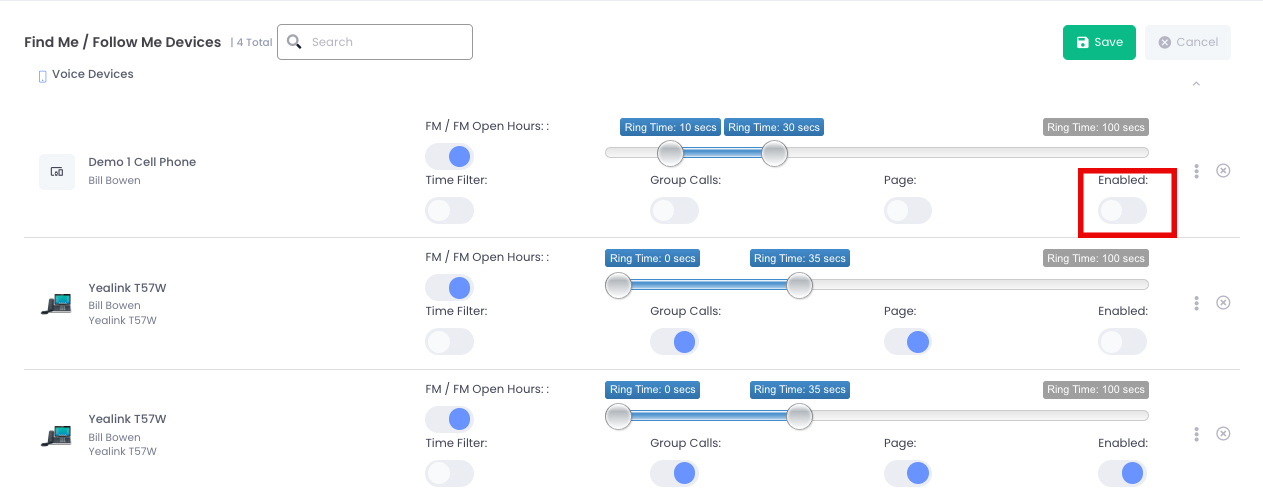
This method allows you to enable/disable all of your connected devices in a centralized location. This option might not be available if you do not have the necessary permissions. Do this if you want to enable/disable individual devices, but you still want to receive calls on your other devices.
- Select your initials from the top right corner
- Scroll to the very bottom and click on My User Settings
- Click on Edit in the ‘Find Me / Follow Me Devices’ pane
- Toggle ON/OFF ‘Enabled’ for each device you want to change
- Press the green Save at the top of the pane